> ## Documentation Index
> Fetch the complete documentation index at: https://help.tradespacepro.com/llms.txt
> Use this file to discover all available pages before exploring further.
# AutoLock: Schedule Risk Settings Protection Windows
> Schedule a daily time window that freezes your risk settings during active trading hours — so you can't loosen limits in the heat of a trade.
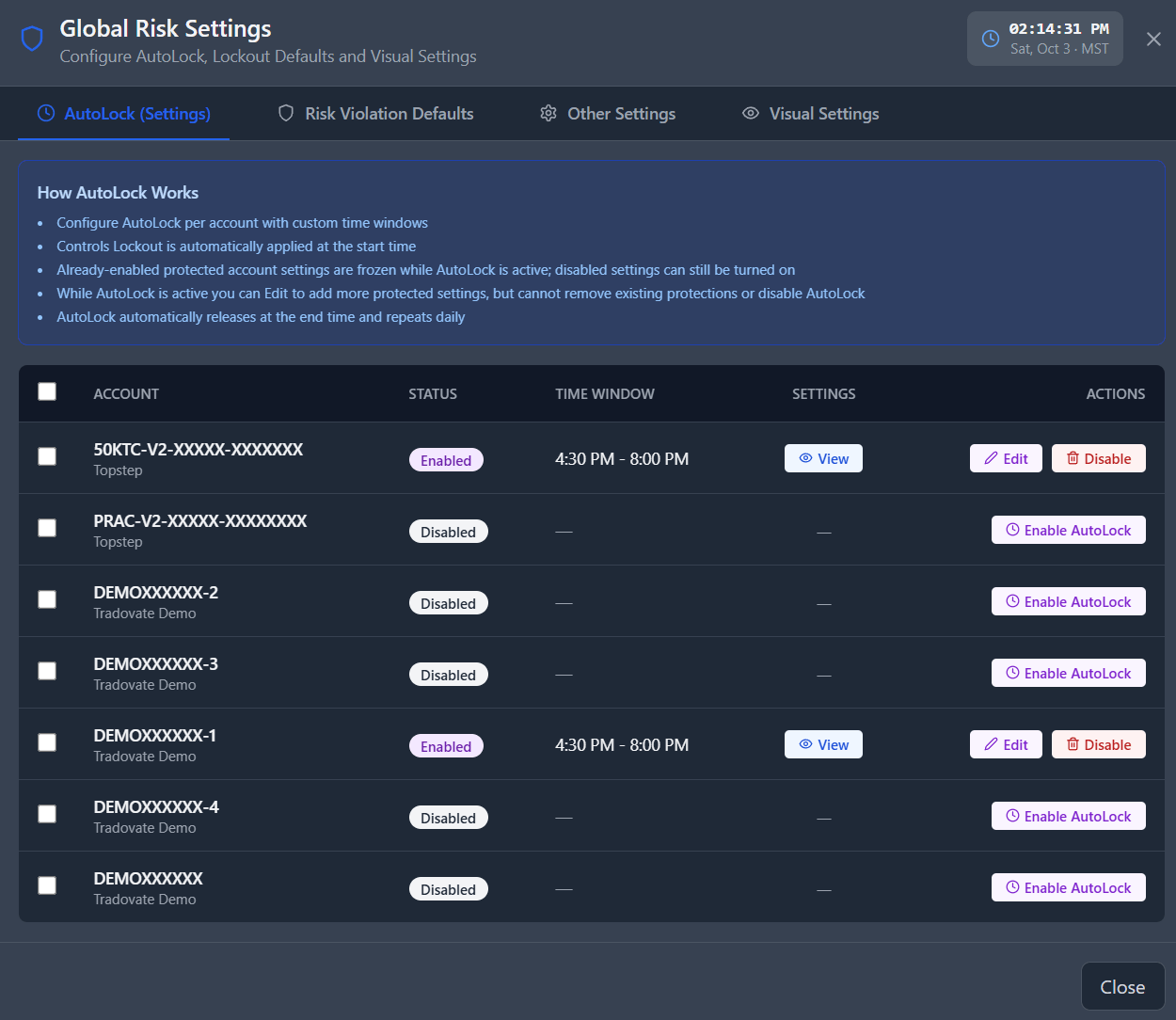
AutoLock lets you schedule a recurring daily time window during which your risk settings are frozen — preventing any changes while the market is open and you're actively trading. It's a discipline tool: once AutoLock engages, you can't impulsively raise your daily loss limit, widen a per-trade stop, or disable a restriction mid-session. Your rules stay exactly as you set them before the trading day began. You are always free to edit any risk setting that is currently disabled. Once enabled, it will no longer able to be changed.
 ## What AutoLock Does
AutoLock is specifically designed to protect your *settings* — not to interfere with your trading. During an active AutoLock window:
* ✅ Trading continues normally — orders are placed, filled, and managed as usual.
* ✅ Risk management rules remain active and enforced.
* ❌ Enabled risk settings cannot be disabled.
* ❌ Protected parameters cannot be modified until the window ends.
This distinction matters: AutoLock is not a trade halt. It is a commitment device that locks in the rules you set with a clear head before the session, so in-session emotions can't override your pre-market plan.
AutoLock ends automatically at the configured end time each day and re-engages the following day at the configured start time. There is no manual override during an active window — this is intentional. If you need to make a legitimate settings change, wait until the window ends or adjust your schedule before the window opens.
## Configuring AutoLock
In your Global Risk Settings pop-up, select the **AutoLock** tab.
Toggle AutoLock **on** for the account you want to protect. The schedule and mode settings will become available once the toggle is enabled.
## What AutoLock Does
AutoLock is specifically designed to protect your *settings* — not to interfere with your trading. During an active AutoLock window:
* ✅ Trading continues normally — orders are placed, filled, and managed as usual.
* ✅ Risk management rules remain active and enforced.
* ❌ Enabled risk settings cannot be disabled.
* ❌ Protected parameters cannot be modified until the window ends.
This distinction matters: AutoLock is not a trade halt. It is a commitment device that locks in the rules you set with a clear head before the session, so in-session emotions can't override your pre-market plan.
AutoLock ends automatically at the configured end time each day and re-engages the following day at the configured start time. There is no manual override during an active window — this is intentional. If you need to make a legitimate settings change, wait until the window ends or adjust your schedule before the window opens.
## Configuring AutoLock
In your Global Risk Settings pop-up, select the **AutoLock** tab.
Toggle AutoLock **on** for the account you want to protect. The schedule and mode settings will become available once the toggle is enabled.
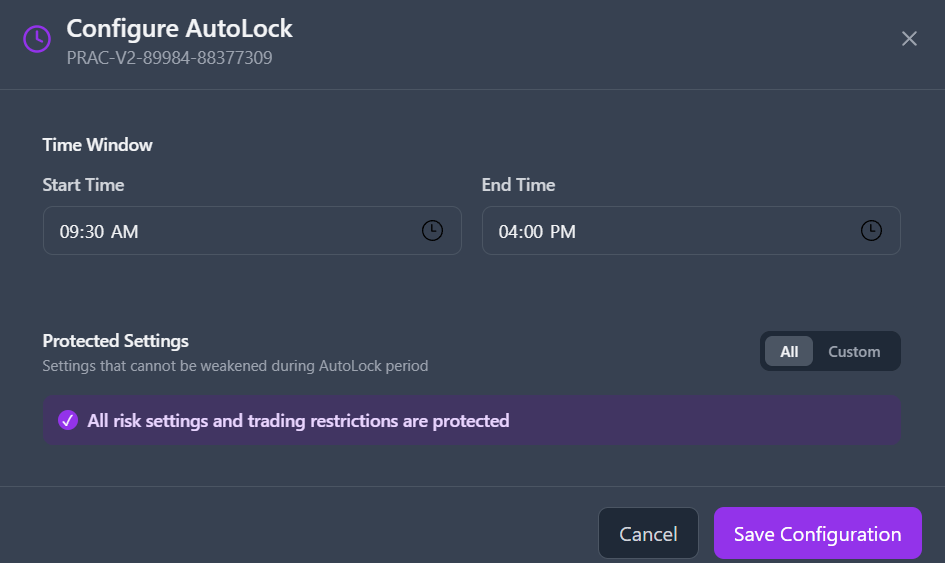 Select a **Start Time** and **End Time** for the daily protection window. For example, `09:00 am – 5:00 pm America/Chicago` covers the core CME trading session. AutoLock will engage every day at the start time and lift automatically at the end time.
Select either **Protect All** or **Custom** mode depending on how broadly you want to lock your settings. See [Protection Modes](#protection-modes) below for details on each option.
Set your AutoLock window to match your broker's regular trading session hours — for example, the CME Globex open through the pit session close. This ensures your settings are protected for the entire window when price action and order flow are most active.
## Protection Modes
**Protect All** freezes every risk setting on the account during the AutoLock window. No risk parameters — limits, restrictions, or drawdown settings — can be modified until the window ends.
This is the simplest and most comprehensive option. Use it when you want zero flexibility to make changes during the session, or when you're participating in a funded evaluation program that requires strict rule adherence.
**Custom** mode lets you choose exactly which individual settings are protected during the window. Settings you do not select remain editable even while AutoLock is active.
This is useful when you want to lock your core financial limits — like your Daily Loss Limit and Trailing Drawdown — while still allowing yourself to adjust less critical settings, such as your allowed trading days, during the session.
Select the specific parameters to protect from the list in the AutoLock configuration panel. See [Protected Settings](#protected-settings) below for the full list of available options.
## Protected Settings
When using **Custom** mode, you can individually select any of the following parameters for protection.
### Risk Limits
* **Daily Loss Limit** — Maximum daily loss threshold.
* **Daily Profit Limit** — Maximum daily profit cap.
* **Per-Trade Loss Limit** — Maximum loss per individual trade.
* **Per-Trade Profit Limit** — Maximum profit per individual trade.
* **Daily Funded Target** — Prop/funded account daily profit target.
* **Trailing Daily Loss Limit** — Trailing intraday drawdown floor.
### Trading Restrictions
* **Max Contract Size** — Maximum contracts per order.
* **E-Mini Blocking** — Block for standard E-Mini instruments.
* **Daily Trade Limit** — Maximum round-trip trades per session.
* **Consecutive Loss Limit** — Maximum consecutive losing trades.
* **Time Restriction** — Permitted order submission window.
* **Allowed Trading Days** — Permitted days of the week for trading.
This documentation is built and hosted on [Mintlify](https://mintlify.com), a developer documentation platform.
Select a **Start Time** and **End Time** for the daily protection window. For example, `09:00 am – 5:00 pm America/Chicago` covers the core CME trading session. AutoLock will engage every day at the start time and lift automatically at the end time.
Select either **Protect All** or **Custom** mode depending on how broadly you want to lock your settings. See [Protection Modes](#protection-modes) below for details on each option.
Set your AutoLock window to match your broker's regular trading session hours — for example, the CME Globex open through the pit session close. This ensures your settings are protected for the entire window when price action and order flow are most active.
## Protection Modes
**Protect All** freezes every risk setting on the account during the AutoLock window. No risk parameters — limits, restrictions, or drawdown settings — can be modified until the window ends.
This is the simplest and most comprehensive option. Use it when you want zero flexibility to make changes during the session, or when you're participating in a funded evaluation program that requires strict rule adherence.
**Custom** mode lets you choose exactly which individual settings are protected during the window. Settings you do not select remain editable even while AutoLock is active.
This is useful when you want to lock your core financial limits — like your Daily Loss Limit and Trailing Drawdown — while still allowing yourself to adjust less critical settings, such as your allowed trading days, during the session.
Select the specific parameters to protect from the list in the AutoLock configuration panel. See [Protected Settings](#protected-settings) below for the full list of available options.
## Protected Settings
When using **Custom** mode, you can individually select any of the following parameters for protection.
### Risk Limits
* **Daily Loss Limit** — Maximum daily loss threshold.
* **Daily Profit Limit** — Maximum daily profit cap.
* **Per-Trade Loss Limit** — Maximum loss per individual trade.
* **Per-Trade Profit Limit** — Maximum profit per individual trade.
* **Daily Funded Target** — Prop/funded account daily profit target.
* **Trailing Daily Loss Limit** — Trailing intraday drawdown floor.
### Trading Restrictions
* **Max Contract Size** — Maximum contracts per order.
* **E-Mini Blocking** — Block for standard E-Mini instruments.
* **Daily Trade Limit** — Maximum round-trip trades per session.
* **Consecutive Loss Limit** — Maximum consecutive losing trades.
* **Time Restriction** — Permitted order submission window.
* **Allowed Trading Days** — Permitted days of the week for trading.
This documentation is built and hosted on [Mintlify](https://mintlify.com), a developer documentation platform.